

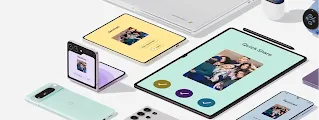
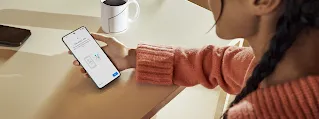

Share files from your Android. It’s quick and easy.
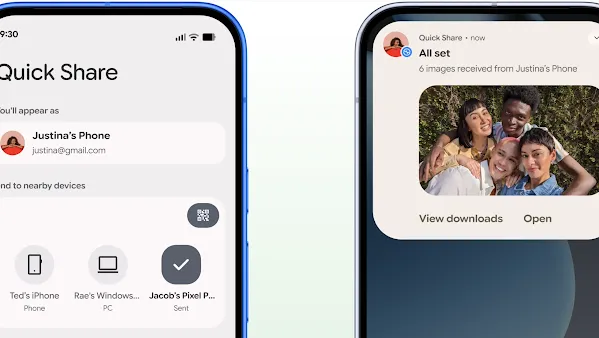
How to share and receive files on Android.
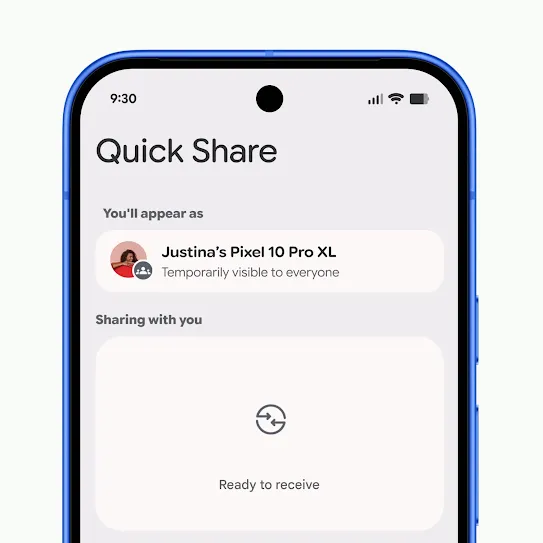
Open Quick Share.
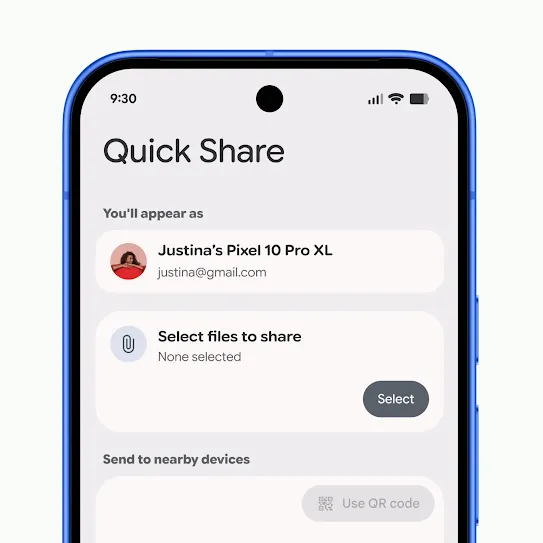
Select the photos or files you want to share.
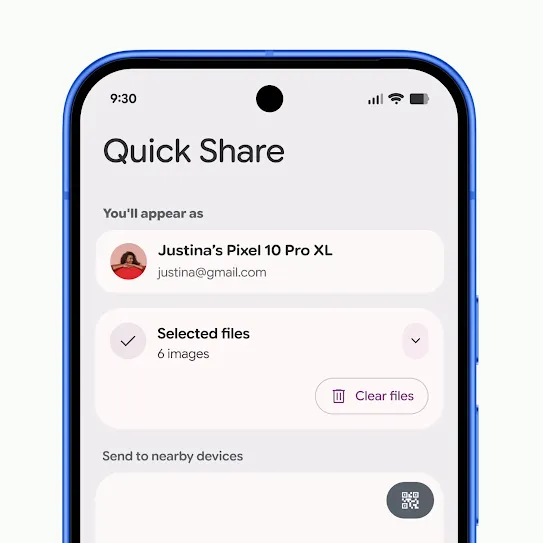
Select the Android device to share with.
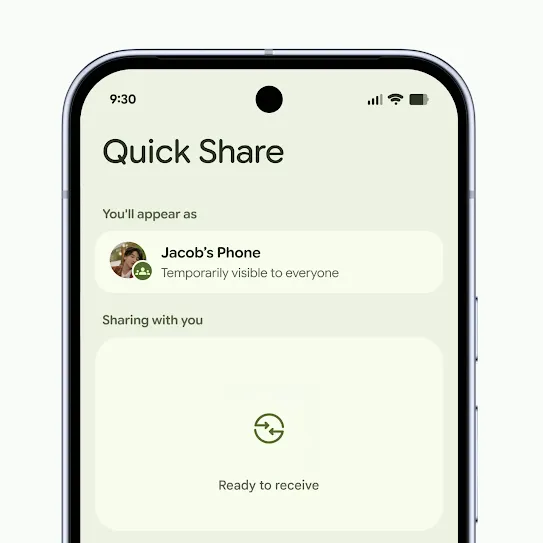
Make sure Quick Share is in Receive mode.
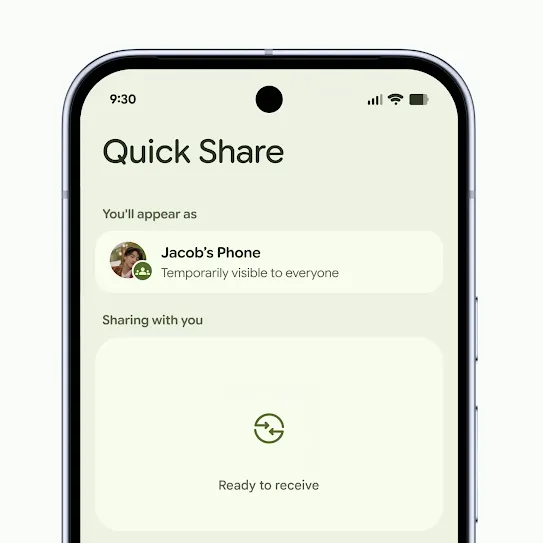
Tap ‘accept’ when the pop-up notification appears.
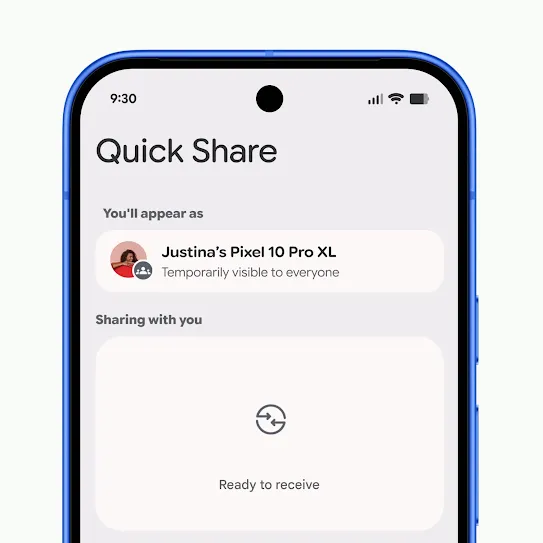
Open Quick Share.
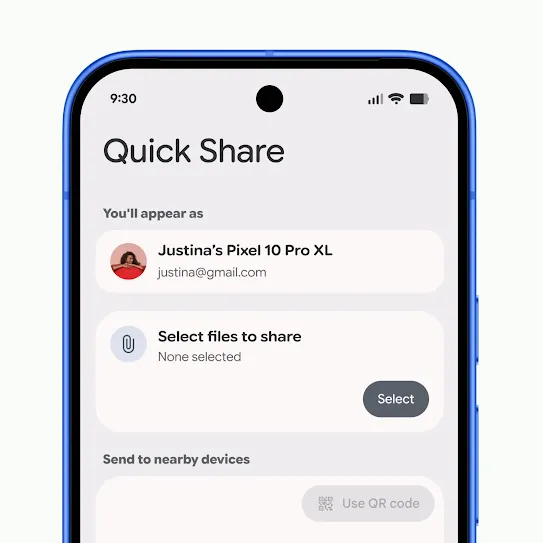
Select the photos or files you want to share.
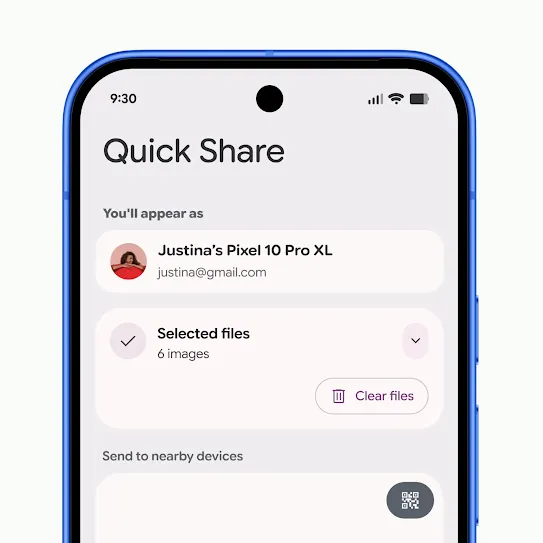
Tap ‘Use QR code’.
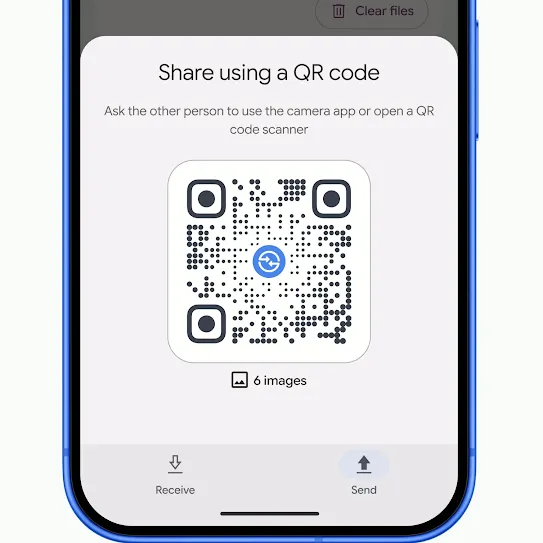
Have the recipient scan the code with their camera app.
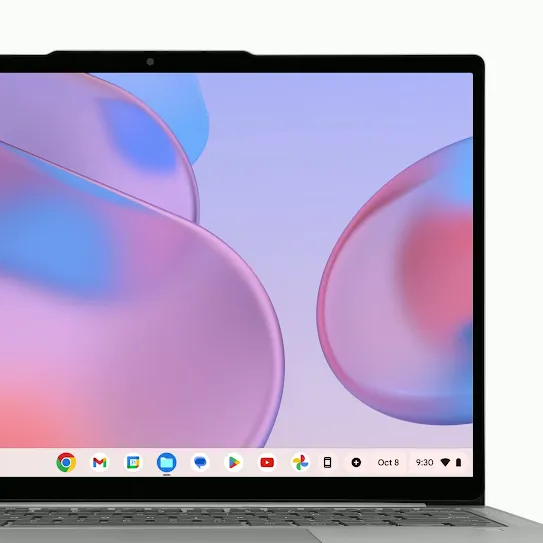
Turn on Quick Share on your Chromebook.
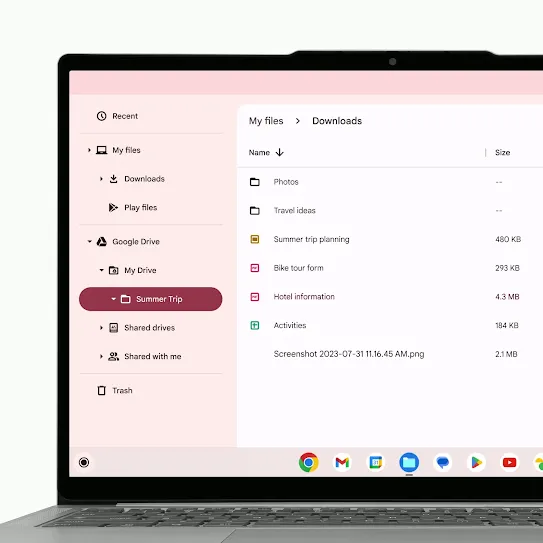
Select the files or photos you want to share.
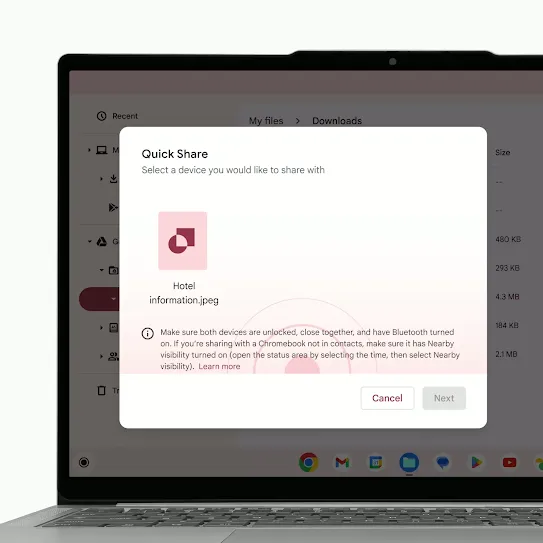
Make sure your Device visibility is set to your preference.
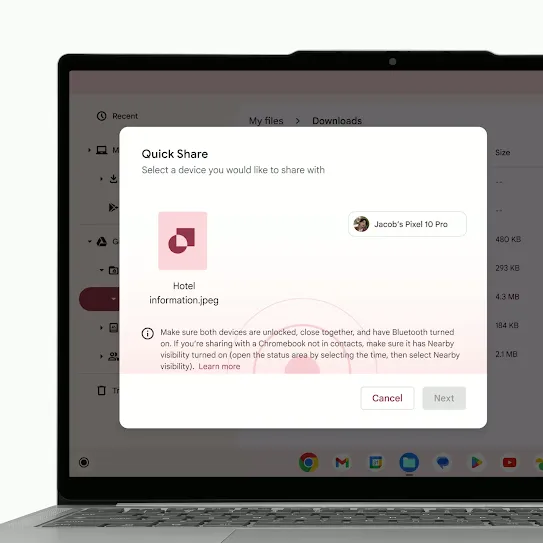
Wait for the recipient to accept.
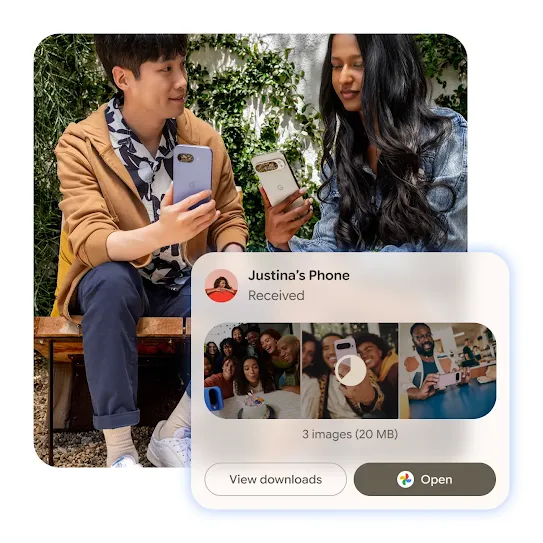
Redesigned for simple sharing.

FAQs
Quick Share lets you quickly and securely share photos, videos, documents, and links with nearby devices.
Quick Share lets you send files between Android phones, tablets, Chromebooks, and Windows PCs. And with supported Android devices, Quick Share also works with Apple’s AirDrop® to share files with iPhones.
AirDrop® is Apple’s file-sharing feature for Apple devices. With the latest update on compatible Android devices, Quick Share can work with AirDrop®to enable file sharing between supported Android and all iPhone devices.
No. Quick Share does not allow remote access to your phone. You control who can see your device, and every transfer must be accepted by the recipient.
In Quick Share settings, you can choose who can see your device - such as Contacts only or Everyone nearby - and you can change this at any time.
You can access Quick Share from the Share menu when viewing a file, from Quick Settings, or by searching for “Quick Share” in your device’s Settings app.
Yes, Quick Share works on supported Android tablets that are running Android version 6.0 and above.
Quick Share uses Bluetooth to find nearby devices, then transfers files directly between devices using a fast, local, Wi-Fi connection. This means you don’t need to be on the same Wi-Fi network or use cellular data.
For nearby sharing, devices typically need to be within about 1 foot (30cm). When sharing using a QR code or link, distance doesn’t matter.
You can share photos, videos, documents, links, and many other common file types.
On Android, files are saved to your Downloads, Gallery, or Files app, depending on the file type. The files you receive with Quick Share are saved in your device’s Files app under Downloads > Quick Share.
On an iPhone, when using AirDrop®, files are saved to AirDrop®’s usual locations based on the file type. (For example, photos are saved to the Photos app.)
If Quick Share shows "device not supported" or fails to work, first ensure both devices have Bluetooth, Wi-Fi, and Location enabled and are within close proximity. For Windows, use a 64-bit version of Windows 10/11 and download the app directly. If using Samsung, ensure it is updated to receive files from non-Samsung devices.