


Learn how to use Quick Share, which delivers AirDrop-like convenience for Android devices. Discover how easy it is to share files quickly between Android phones, even when you’re offline.
Quick Share: an AirDrop-like sharing experience made for Android.
If you’ve used AirDrop on iOS, you’ll feel right at home with Quick Share. It’s built right into your Android device, so there’s no extra setup or apps needed.
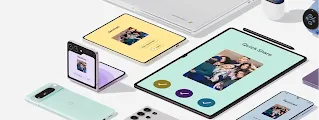
Whether you’re sharing family photos, study notes, or travel documents, Quick Share allows you to move files between devices seamlessly across the Android ecosystem, including Android phones, Chromebooks, and Windows PCs. Think of it as the AirDrop experience, made for Android.
Key features of Quick Share:
- Fast and easy file sharing.
- No limitations related to content size or file number. (App limitations may apply.)
- Seamless integration within the aforementioned ecosystems.
How to use Quick Share.
Using Quick Share is a breeze. You can find Quick Share through three different pathways, here's how:
From the Share menu:
- Open the content that you want to share.
- Tap "Share" and then "Quick Share".
From the Quick settings:
- On your device, swipe down.
- On the "Quick Settings" menu, scroll to find the "Quick Share" tile.
- Tap "Quick Share".
From the device Settings:
- Open your device’s Settings app.
- In the Settings app’s search bar, enter "Quick Share".
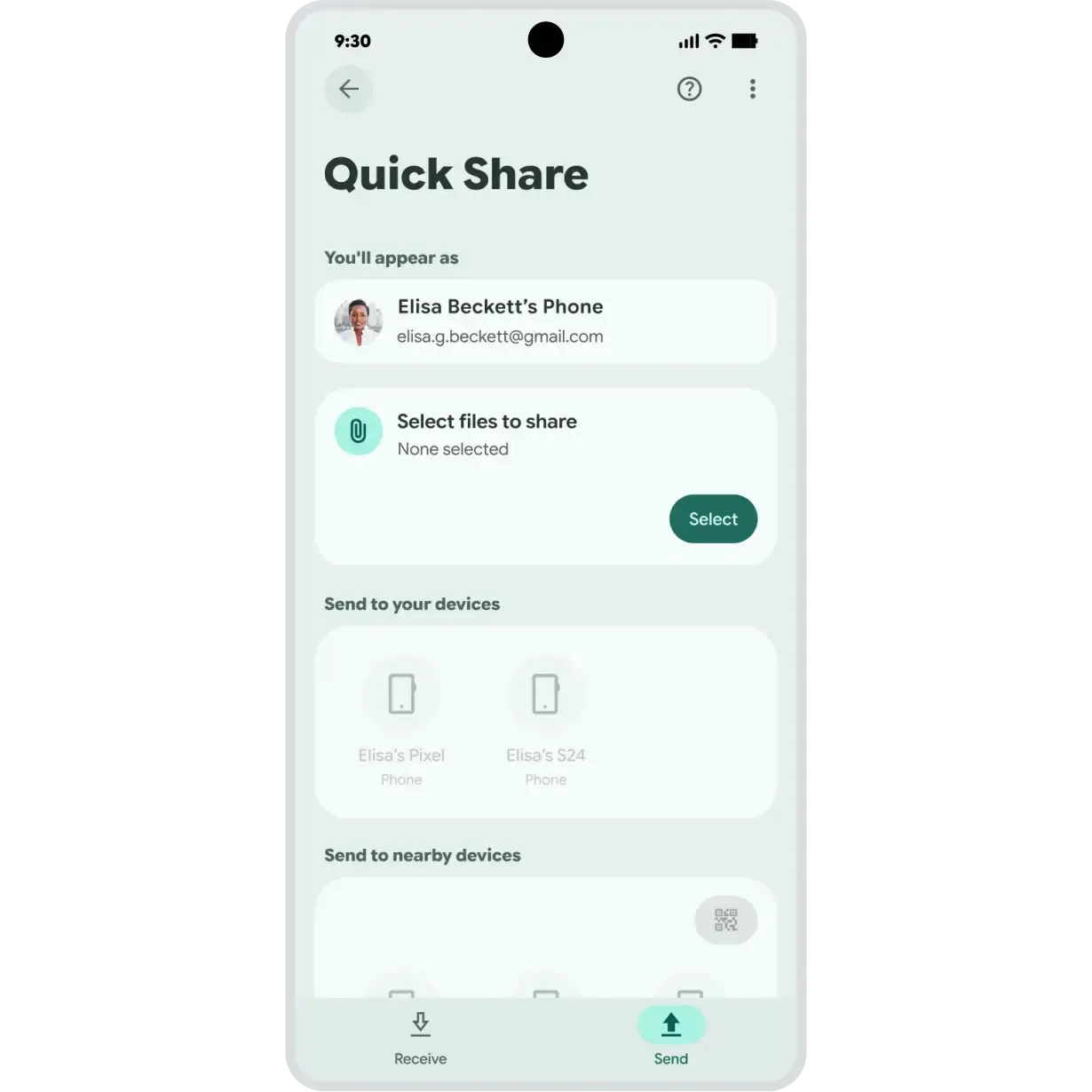
- On the Quick Share page, tap either "Receive" or "Send".
How to send and receive files between Android phones.
Using Quick Share is simple. Check out our step-by-step guide on how to send files below:
- Open the file you want to share (photo, video, document, etc.) and tap the Share icon (usually three connected dots).
- Select “Quick Share” from the sharing options and choose the device you want to share with from the list of available devices.
- If the device you want to share with isn’t listed, you can select the QR Code option to generate a QR code for the other person to scan.
Receiving files is just as easy:
- On the Quick Share page, make sure it’s in “Receive” mode.
- Wait for a pop up notification that tells you who’s trying to share and what content they want to share with you. Tap Accept or Decline.
- If both devices are logged into the same Google Account, the file will be accepted automatically.
For Pixel 10 devices, sharing has become even easier across the board. You can now easily share files with AirDrop users on iOS. Here's how:
- Ask the iPhone, iPad or macOS user to open their AirDrop settings and select "Everyone" for 10 minutes. On your Pixel 10 device, open up Quick Share, and select the iOS device to share.
- For receiving files on Android, adjust your Quick Share visibility settings to "Everyone for 10 minutes" or be in "Receive" mode on the Quick Share page.
For more details, you can read about sharing between Pixel 10 and iOS devices in this article.
Benefits of using Quick Share.
Sharing files between Android phones using Quick Share offers several advantages over other file-sharing methods. Discover some of the highlights:
Fast and convenient.
Quick Share is faster and easier than emailing files or using cloud storage. Whether you’re sending a single photo or a folder of documents, transfers between devices happen in seconds. That means you can share pictures from a night out or a vacation with your loved ones – right after you’ve taken them.
Offline sharing.
No signal? No problem. Quick Share works even without an internet connection. Instead, it will transfer over Bluetooth. That means you can even send and receive files on a plane, a train, or completely off the grid. No need for Wi-Fi access, just simple sharing that keeps you connected.
Secure file transfer.
Quick Share creates a secure, device-to-device connection, so your files, photos and videos go straight from one device to the other. That means privacy,security, and peace of mind knowing your data stays between your phone and the other device you’re sharing with.
Not a contact? No problem.
Quick Share lets you share files with someone else, even if they aren't in your contacts. The person receiving the files simply needs to be in "Receive" mode on the Quick Share page. Or they can generate a QR code for your selected files and scan it with their device to receive the content. No need to exchange contact information or adjust any settings – just scan and share.
Share without limits.
From high-res videos to long PDFs, you can send whatever you want because Quick Share doesn’t cap your file sizes when sharing between nearby devices. Send any file you like in its original format without worrying about compression or sharing limits.
Seamless integration.
Quick Share is designed for seamless integration across your devices. It's built right into Android phones and Chromebooks, so there's nothing to install or configure. You can start sharing photos, videos, and files between your devices with a simple tap – no more emailing yourself links. For Windows PCs, just download the Quick Share app to connect your devices and easily send your files. Get the app at android.com/better-together/quick-share-app/.
Effortless sharing, built in.
Quick Share is a game-changing feature for your Android device. It provides a seamless way to share files between Android phones and other devices. It’s built in, so you can start using Quick Share right away and explore everything it’s built to do. And say goodbye to the days of cumbersome file transfers forever.