

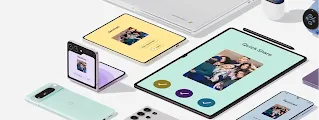


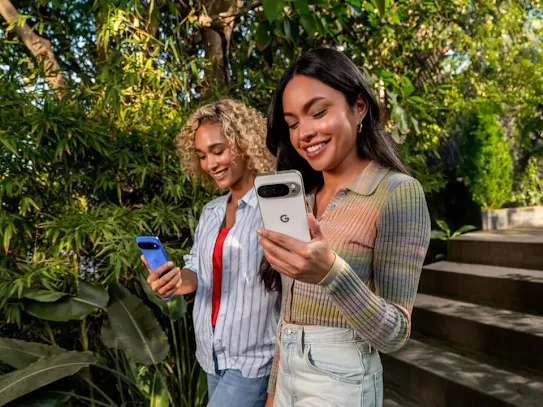
Forget about blurry photos and videos when sharing your memories with iPhone® users. Android offers multiple ways for you to transfer your files safely and easily, without loss of quality.
This guide will walk you through the best methods, from built-in features to secure apps, to ensure that Android has all your devices working in sync.
Quick Share: Android's built-in file sharing solution.
While smartphone camera technology advances steadily, allowing you to take awesome photos in high definition, sharing these images while preserving their quality can be a challenge, especially if you need to share between Android and iOS®.
Sharing photos and videos across different operating systems used to mean settling for grainy, compressed files through messaging apps. Thankfully, those days are over. You might already know Quick Share as the “AirDrop for Android” service preinstalled on your phone for seamless sharing with other Android friends. Now, it’s even better: you can use it to share those same high-quality files directly with iPhone® friends, too.
With Quick Share, you can now:
- Wirelessly share photos, videos, and files with your iPhone® friends on all of their iOS® devices.
- Send and receive full-resolution photos and videos without losing any of their original detail.
- Move large files between devices instantly while keeping your data encrypted and secure.
- Move several photos or videos simultaneously without cluttering your messaging apps.
How to share photos and videos between Android and iPhone®.
Gone are the days of emailing photos or videos to yourself just to get them to a friend. With Quick Share, you can bridge the gap between Android and iOS® in seconds.
From Quick Share to Airdrop®
- Open Quick Share and make sure the iOS® device you’re transferring files or photos to is nearby. Samsung users need to ensure that the Share with Apple® devices on their Quick Share settings is on.
- Select photos or files you want to share.
- Make sure the iOS® user’s AirDrop® visibility is set to Everyone for 10 minutes. This option can be toggled in the Control Center with a long press of the AirDrop® icon.
- Select the recipient’s iPhone® and wait for them to accept. Then, the transfer will begin.
From Airdrop® to Quick Share
- Select photos or files you want to share, tap the Share icon and select AirDrop®. Make sure the Android device you're transferring files or photos to is nearby.
- Make sure that the Android device is in Quick Share's Receive mode. Samsung users need to ensure that the Share with Apple® devices on their Quick Share settings is enabled.
- Select the recipient’s Android device. When they accept, the transfer will begin.
Quick Share integration with iOS® is already available on many devices, including:
- Samsung Galaxy S24, S25, and S26 Series
- Google Pixel 10 series, 9 series, 8a
- OPPO Find X9 series, Find N6
- OnePlus 15
- Vivo X300 Ultra
- And more
Check our list of compatible models to see if the Quick Share integration is available on your device.
Sharing multiple files is easy and seamless
Sharing a whole album or a night's worth of photos does not require sending them one by one. You can select dozens of images and videos in your Gallery or Google Photos at the same time. The best part? The entire batch will fly over in a single package, organizing itself neatly in their gallery, so you won't have to deal with the annoying clutter on messaging apps, having to navigate through albums’ worth of shared photos just to find the one you want.
When you tap Quick Share, the receiving device only needs to accept the transfer once. This is the fastest way to share vacation photos without compressing them into a zip file or uploading them to a cloud folder first.
The universal solution: Share with a QR code
Can't find the device you’re looking for? You can generate a unique QR code that nearby devices can scan to connect and receive files. This is the ideal solution for Android-powered devices that don’t have the direct iOS integration set up.
- Open Quick Share.
- Select photos or files.
- Tap “Use QR Code”. A QR code will appear on your screen.
- Have the recipient scan the QR code with their camera app. A Quick Share webpage will open in the recipient’s default browser, and the file transfer begins automatically.
You can find more information on how to use Quick Share on iOS® and other Android devices in this article.
Share with PC and MacBook® using Quick Share.
Quick Share is a convenient and safe solution for sharing photos, videos, and files from Android to iOS®, and it can also be used for file transfers between PCs and MacBooks®.
Sharing between Android and PC
Quick Share offers a Windows app for PCs that lets you share files seamlessly between your phone and computer. Here's what you need to do:
- Download and install the app on your Windows PC.
- Set your preferences. Log in to your Google account and select who can share files with you under the “Device visibility” setting.
- Share the files easily and safely between your devices.
For more information, you can check the page in the Quick Share Windows app.
Sharing between Android and MacBook®
If you use a MacBook®, you can also use Quick Share to conveniently share files between your Mac and Android device. If your device supports iOS integration (see the list of compatible devices here), it connects directly to your Mac’s AirDrop® service. All you need to do is share exactly like you would with an iPhone®.
Create and share memories without limits.
Sharing precious memories and special moments has never been easier. With the option to share high-quality photos and videos between Android and iOS® directly with Quick Share, you can now say goodbye to pixelated images or clutter on your messaging apps.
So go ahead, capture that breathtaking video and send it instantly with the full resolution it deserves. Your best moments should travel as far as your imagination, ensuring you’re always sharing those unforgettable memories with the people who matter most.
Footnotes:
- AirDrop® and iPhone® are registered trademarks of Apple Inc. iOS® is a trademark or registered trademark of Cisco in the U.S. and other countries and is used under license.
- Available on select Samsung Galaxy and other Android devices. Availability subject to change. Compatibility supported only by Google. Compatible devices required (see g.co/android/quickshare for details). Must be within Bluetooth distance.