

Site Menu

Start your new phone era.
Play silent looping video Pause silent looping video

How to transfer data between Android phones1:
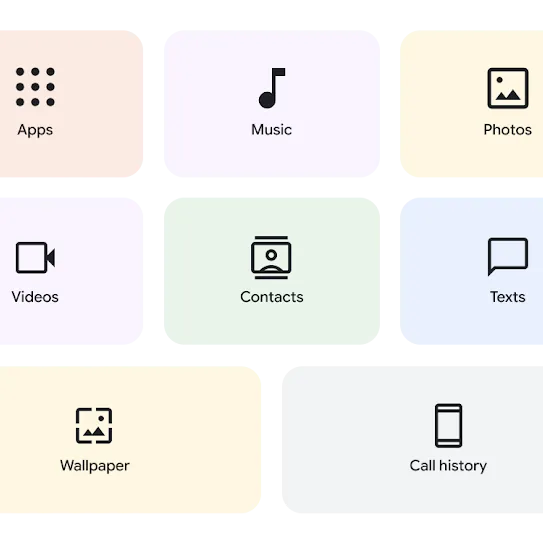
What you can transfer
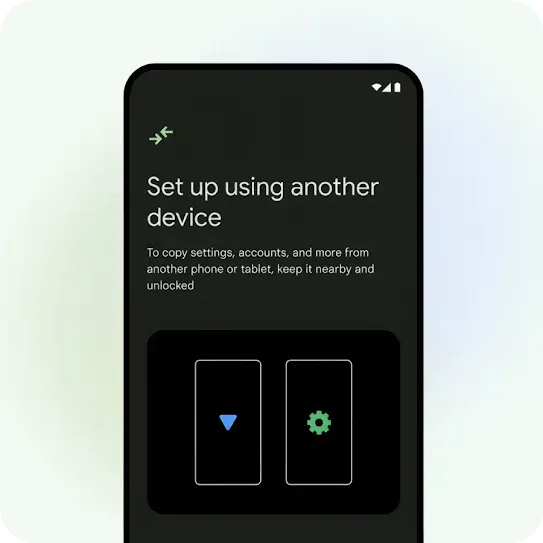
An Android phone screen with the title “Set up using another device” and “To copy settings, accounts and more from another phone or tablet, keep it nearby and unlocked” In the top corner is the “transfer” icon. Below the message are two phone outlines, one with a blue triangle, the other with a green gear in the center.
Step 1

Connect both phones wirelessly.

Turn on your new and existing Android phones.

Your new Android phone will give you instructions right on the screen to connect your old device.2
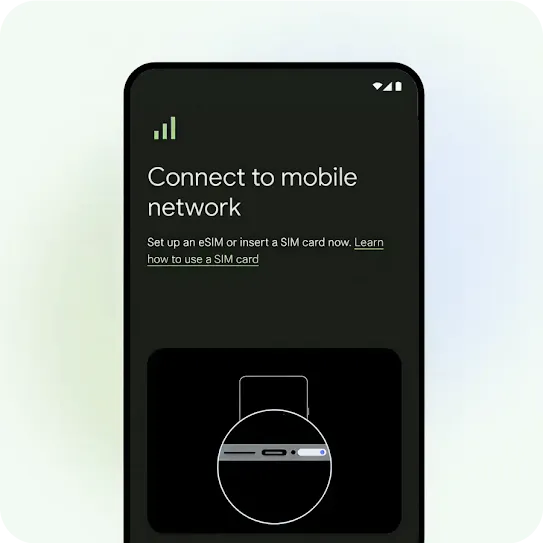
An illustration of an Android phone screen during the SIM activation process. There are three signal bars in the upper left corner of the screen. Text on the screen says “Connect to mobile network.” Smaller text below that says “Set up an eSIM or insert a SIM card now.” There is a hyperlink that says “Learn how to use a SIM card.” Below the text, there is an illustration showing the bottom edge of a phone with the SIM card port highlighted.
Step 2

Activate your SIM & sign in.

Next, follow the on-screen instructions to activate your SIM, add your Google Account, and set up biometrics.
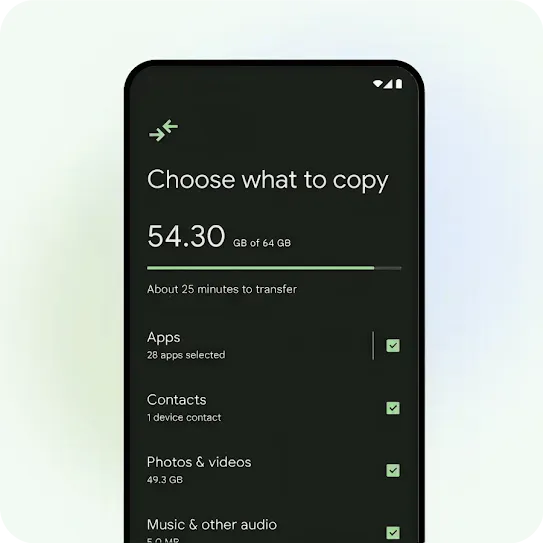
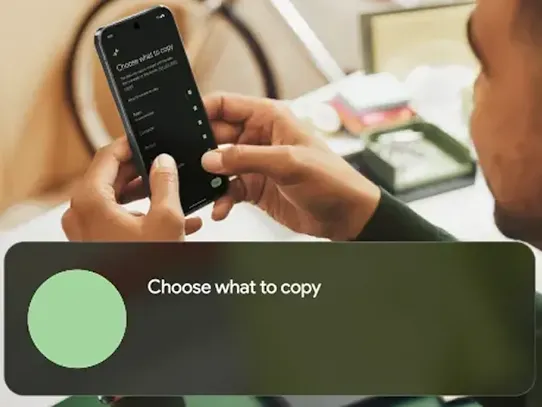
An Android phone screen with the title “Choose what to copy”. There is a progress bar of how much has transferred as well as a checked off list of data to transfer including Apps, Contacts, Photos & videos and Music & other audio,”
Step 3

Select your data.

After that, you’ll choose what data you want to copy from your existing Android phone.
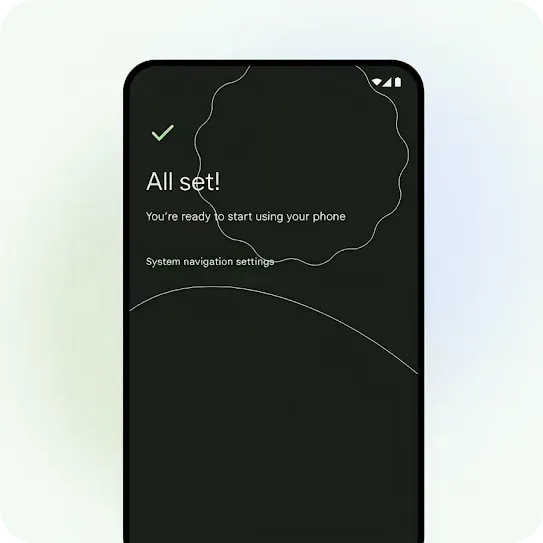
An Android phone screen with the title “All set!” and the message “You’re ready to start using your phone”. Directly below is the clickable text link for “System navigation settings”.
Step 4

Transfer your data.

That’s it! Your data will transfer over while you get to know your new phone.
Play silent looping video Pause silent looping video
Android Switch

On Pixel, you can transfer even after setup.

If you are a Pixel 9, Pixel 9 Pro, or Pixel 9 Pro Fold user, you can now access Android Switch after you’ve already set up your device.

Find it in settings, or on the Google Play Store.

Get support

Check out our Help Center to get answers. For concierge support, follow the links below:

How do I log into my apps and services?

If you use Google Password Manager, you’re in luck! It’s already installed on your new device. If you store passwords or passkeys in another password manager:

  1. Download your password manager
  2. Go to settings and tap “passwords & accounts” (or search “passwords”)
  3. Switch the toggle next to the password manager you want to enable

Do I need to re-pair my headphones, speakers and other devices with my new Android device?

Yes. You may need to go into your Bluetooth settings and pair some of your devices to your new Android device through Bluetooth.

How do I get WhatsApp chats and data onto my new Android device?

On your old device, go to settings within WhatsApp and select the option to backup your chats. When you open WhatsApp on your new device for the first time, follow the on-screen instructions until you are asked if you want to restore your chats from a previous backup.

What if I don’t have my old device?

If you previously backed up data with Google One, you can restore content, data, and settings from an old device, even when you don’t have it anymore. While setting up, skip “set up using another device,” and choose to restore data from an old device.

Make sure you connect to a Wi-Fi network and sign into your Google account during device setup to view and select your available backups.

I use an eSIM, what should I do?

Follow the instructions on the device to download or transfer your eSIM. The instructions may vary depending on your device and carrier.

Play silent looping video Pause silent looping video

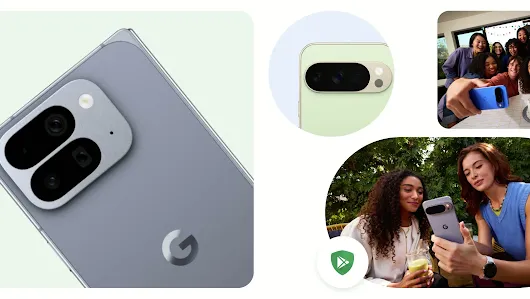
More choices, more possibilities.

Haven’t found your new phone yet?

Screen images for illustration purposes.
Some features and availability vary by OEM and/or device manufacturer.
1 Steps might vary by device manufacturer.
2 Wi-Fi connection required.

Product availability, features, and specifications vary by region, carrier, and device. Not all devices or features shown on this page are available in all markets. Please check with your local retailer or mobile carrier for current availability and compatibility in your area.
Android is a trademark of Google LLC. All other trademarks are the property of their respective owners.

Play silent looping video Pause silent looping video