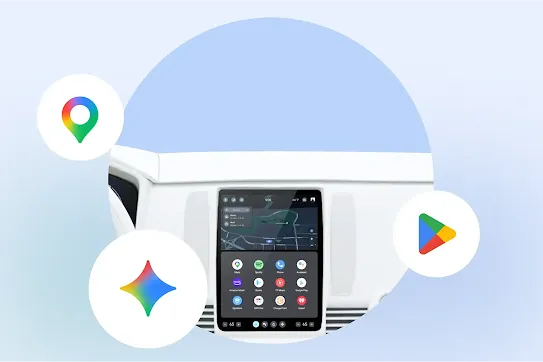




The power of Gemini now on your car screen.
Link to Youtube Video (visible only when JS is disabled)
Smarter stops, smoother journeys.
Gemini acts as your expert guide, helping you discover new places and navigate the road easily, like finding a quick bite along your route.

I’m craving bbq. Any good spots along my route that are less than a mile detour?
Stay connected, with confidence.
Voice commands that actually understand you. Talk to Gemini naturally—without needing scripts or shortcuts.

Text Leo my ETA with a ‘sorry’ emoji. And if he wants to grab coffee after.
Get more done from the driver’s seat.
Need to find specific details from an email? Gemini connects with tons of popular apps like Gmail, YouTube, and Spotify to help you stay organized and get things done.
I have a hotel booked for tonight. Can you check my email for the address?
Set the perfect vibe for every mile.
Tell Gemini what you're in the mood for—upbeat tracks, mellow jazz, or a gripping podcast. Just talk naturally, and it finds what fits.
Make an upbeat, family-friendly playlist for a 3 hour road trip.
Chat with Gemini Live.*
Whether you're exploring new ideas or chatting to pass the time, Gemini Live* helps spark inspiration. Just say 'Hey Google, let's talk'.
I’m driving to St. Louis. Pretend to be my tour guide and share some fun facts.
Park and play.
Level up your downtime. With Android Auto, you can now play games on your car's display while parked. And stay tuned – even more parked experiences are coming soon.



Smarter stops, smoother journeys.
Gemini acts as your expert guide, helping you discover new places and navigate the road easily, like finding a quick bite along your route.

I’m craving bbq. Any good spots along my route that are less than a mile detour?
Stay connected, with confidence.
Voice commands that actually understand you. Talk to Gemini naturally—without needing scripts or shortcuts.

Text Leo my ETA with a ‘sorry’ emoji. And if he wants to grab coffee after.
Get more done from the driver’s seat.
Need to find specific details from an email? Gemini connects with tons of popular apps like Gmail, YouTube, and Spotify to help you stay organized and get things done.
I have a hotel booked for tonight. Can you check my email for the address?
Set the perfect vibe for every mile.
Tell Gemini what you're in the mood for—upbeat tracks, mellow jazz, or a gripping podcast. Just talk naturally, and it finds what fits.
Make an upbeat, family-friendly playlist for a 3 hour road trip.
Chat with Gemini Live.*
Whether you're exploring new ideas or chatting to pass the time, Gemini Live* helps spark inspiration. Just say 'Hey Google, let's talk'.
I’m driving to St. Louis. Pretend to be my tour guide and share some fun facts.
Park and play.
Level up your downtime. With Android Auto, you can now play games on your car's display while parked. And stay tuned – even more parked experiences are coming soon.


What’s new with Android Auto.
Stay up-to-date with the latest features, improvements, and app additions to Android Auto. Check back often to see what's new.
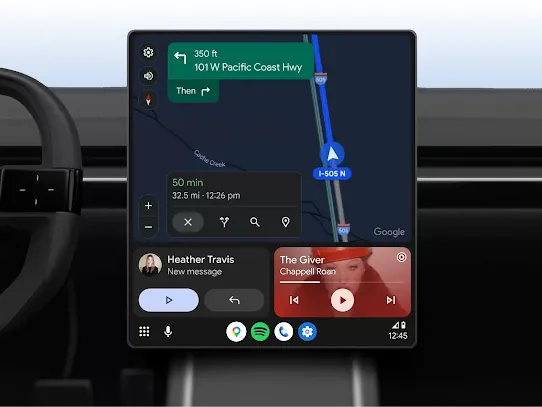
Productivity
Driving just got more productive and fun with Gemini.
Coming soon — more apps, more games, and more hands-free help for tasks like messaging and finding places.
Read the article.
Communication
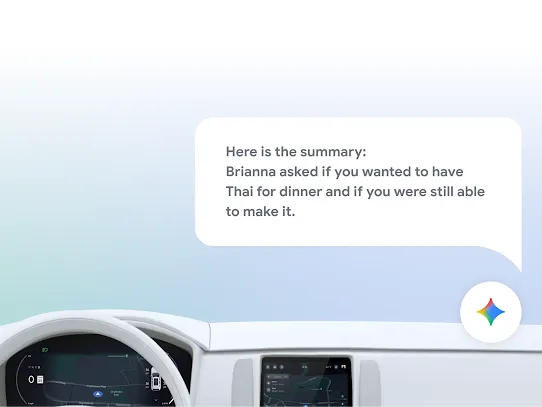
Hear an AI summary of long messages.
Stay on top of group text threads. Android Auto uses AI to provide concise summaries of long, active group chats, so you can quickly catch up while keeping your focus on the road.
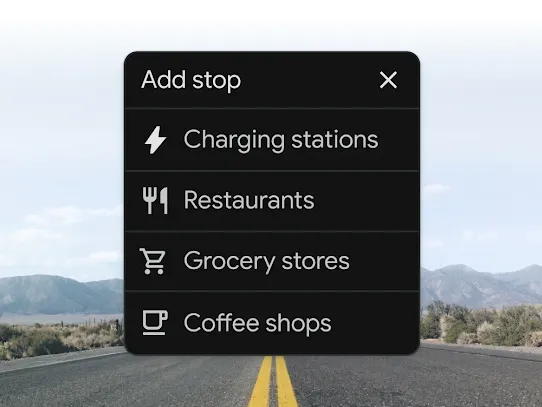
Navigation
Charge your EV with total peace of mind.
Planning your next EV trip? Android Auto and Google Maps work together to make finding a charge easy. Find tailored chargers along your route using filters, and check station details, like real-time availability, ensuring the ideal stop every time.
Read the article.
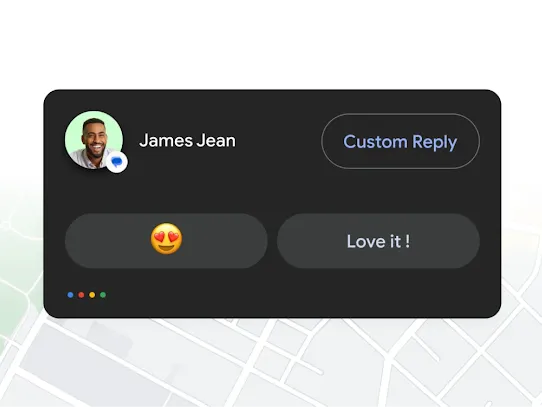
Communication
Quickly respond to messages with suggested replies.
Respond to messages with a single tap. Android Auto's short and helpful smart replies make it easier than ever to stay connected.
Read the article.
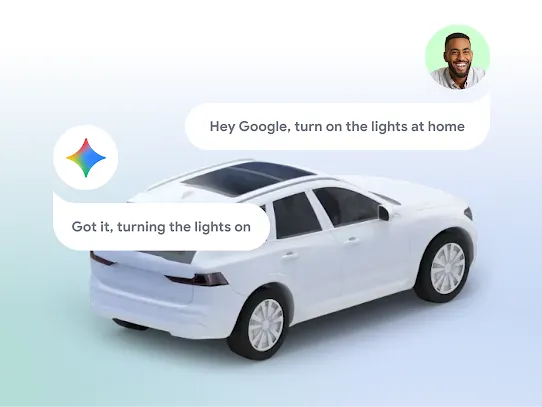
Connection
Smart home controls from the road.
Connect with compatible smart home devices to turn on the lights or adjust the thermostat before you arrive home.
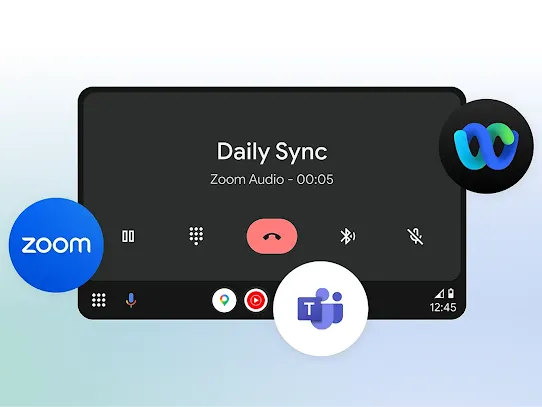
Connection
Get more done on the go with productivity apps.
Stay productive and safe on the road. Apps like Zoom make it easy to quickly join scheduled meetings and conference calls on your car display.
Get started with Android Auto.
Android Auto works with over 500 models, with more on the way. Check our vehicle and stereo list make sure your car is compatible. Also, see if your phone meets the requirements.
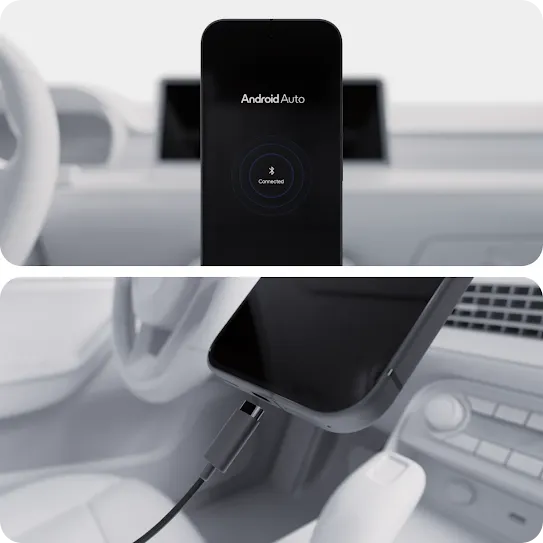
Connect your phone to your car wirelessly via Bluetooth or by USB cable to enjoy Android Auto in supported vehicles.
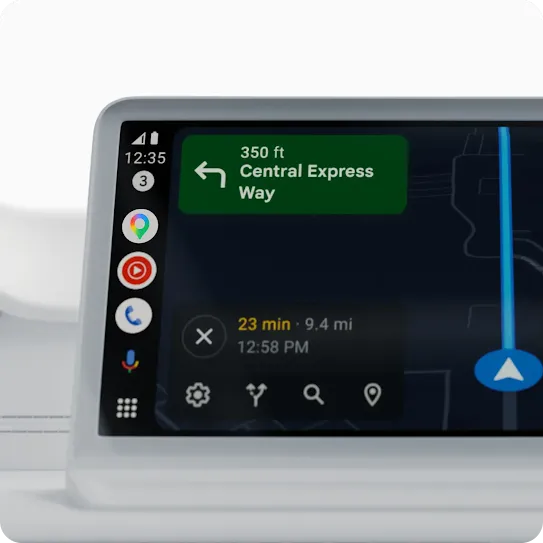
Android Auto should start within a few seconds. If not, follow the on-screen prompts. For more support, visit Android Auto Help.
FAQs
- Android 9.0 (Pie) or higher for most wired connections.
- Android 11.0 or higher for wireless connections and select newer vehicles.
- A car or stereo that's compatible with Android Auto. A high-quality USB cable.
- For wireless connection: A compatible phone (see list) and a compatible car or a supported aftermarket car stereo from JVC, Kenwood, or Pioneer. Check with the manufacturer to see if wireless is supported.
Android Auto makes it easy to access your favorite music, media, and messaging apps in the car. Check out all the Apps for Android Auto.
Android Auto is currently available in the following countries:
- Argentina
- Australia
- Austria
- Belgium
- Bolivia
- Brazil
- Canada
- Chile
- Colombia
- Costa Rica
- Denmark
- Dominican Republic
- Ecuador
- France
- Germany
- Guatemala
- India
- Indonesia
- Ireland
- Italy
- Japan
- Mexico
- Netherlands
- New Zealand
- Norway
- Panama
- Paraguay
- Peru
- Philippines
- Poland
- Portugal
- Puerto Rico
- Russia
- Singapore
- South Africa
- South Korea
- Spain
- Sweden
- Switzerland
- Taiwan
- Thailand
- Turkey
- United Kingdom
- United States
- Uruguay
- Venezuela
Gemini mobile apps are currently available in multiple languages and more than 150 countries. We’ll gradually expand to more languages, countries, and territories, consistent with local regulations and our AI principles.
To choose an eligible language, in your Gemini mobile app, tap your profile picture or initial and then Settings and then Languages and then choose a language. If you choose a language that works with Gemini and Google Assistant, it will open your Assistant language settings to choose a language.
- Arabic
- Bengali
- Bulgarian*
- Chinese (Simplified / Traditional)
- Croatian*
- Czech*
- Danish
- Dutch
- English
- Estonian*
- Finnish*
- French
- German
- Greek*
- Gujarati
- Hebrew*
- Hindi
- Hungarian*
- Indonesian
- Italian
- Japanese
- Kannada
- Korean
- Latvian*
- Lithuanian*
- Malayalam
- Marathi
- Norwegian
- Polish
- Portuguese
- Romanian*
- Russian
- Serbian*
- Slovak*
- Slovenian*
- Spanish
- Swahili*
- Swedish
- Tamil
- Telugu
- Thai
- Turkish
- Ukrainian*
- Urdu
- Vietnamese
*Language does not support “Hey Google” voice commands and some Gemini action features. See our help page to learn more.
Gemini is being integrated directly into Android Auto to replace the classic Google Assistant experience.
To ensure you get access as it rolls out, please take the following step on your Android phone:
Set Gemini as your ‘Primary Assistant.’ Ensure you have switched to Gemini as your primary mobile assistant. You can usually do this through the Google app or the dedicated Gemini app settings on your phone.
The transition to Gemini on Android Auto is a server-side update that Google is rolling out over time. Once your account and device are eligible, Gemini will automatically become your hands-free assistant when you connect your phone to your car.
You can easily get hands-free help from Gemini by using the "Hey Google" hotword or by activating your car's steering wheel voice button.
Simply say, "Hey Google," followed by your question or command for quick tasks like navigation, sending texts, or playing music.
Example: "Hey Google, navigate to the closest gas station."
Gemini Live: For a continuous, back-and-forth conversation—perfect for brainstorming, travel planning, or getting detailed, multi-step answers—say: "Hey Google, let's talk." In this mode, Gemini will stay active and listen for follow-up questions without you needing to say "Hey Google" again until you end the conversation.
Gemini connects your request to your Android Auto display and car speakers, allowing you to stay focused on the road while receiving hands-free assistance.
Go to the Google Play Store, download the Android Auto app and run it anytime you’re on the road. Download it here. As a reminder, phones with Android 10 and above don't need the app to run Android Auto.
For most compatible cars or aftermarket stereos, simply plug in your phone using a USB cable. If your car display supports wireless connection, you must pair your phone with your car’s bluetooth for set-up. After set-up, depending on your car, either the phone will automatically connect or the Android Auto app icon will appear on your car display.