



Effortless multitasking: How Android's new app bubbles streamline your screen workspace.
Learn how to open apps in pop-out view and keep your workflow running seamlessly with the new app bubbles feature in Android 17. Multitasking just got simpler with floating windows that let you do more on one screen. Let’s dive into the details and see how this new feature makes multitasking feel effortless.
Redefining how to multitask on Android with universal app bubbles.
It’s a familiar scenario: You’re in the middle of playing a mobile game, streaming a live sports event, or navigating with GPS when you suddenly need to check a calendar invite or write a quick reply to a text. Before the arrival of Android 17, if you were not using a chat app, you’d have to leave your main app to multitask, disrupting your flow. Now, with app bubbles, the apps you need are right there on your screen, ready to access straight away. Or if you’re working with a larger screen, there’s a dedicated app bubbles bar.
This feature turns any application into an easily accessible, floating workspace on your screen. When you learn how to open apps in pop-out view, your flow is smoother, faster and more efficient.
Traditional app switching forces you to juggle multiple screens at once, interrupting your focus and pausing your video or your game. Floating app bubbles eliminate these issues entirely. Previously, app bubbles on Android were limited to messaging, but now any app in Android 17 can be turned into a floating window. Android is the only operating system that offers this new way of multitasking directly on your main screen
This feature update makes daily tasks much easier. For example, you could watch a walkthrough video on YouTube to help you reach the next level in a game; keep Google Maps open alongside a reservation email while navigating to a hotel; or keep your calculator open to compare prices while shopping online. You can visualise how this works with our bubbles guide.
Maximizing your screen space: how to create app bubbles.
Opening apps in pop-out view can really help your productivity. Here is how to quickly access your apps and make them into floating app bubbles.
To create and expand app bubbles:
- Locate the app icon of the compatible app you want to float
- Long press the app icon to reveal context menu options
- Select the option to open the app as a bubble
- The app will switch into a bubble-style view
- You can repeat these steps for up to a maximum of five apps
When you open multiple apps in this mode, they automatically group in a neat stack on the side of your display, preventing your screen from becoming cluttered. You can even tap the stack to reveal your active bubbles and switch between your tasks.
To collapse and close app bubbles:
- Tap outside the active bubble window to collapse it into a small icon on the side of your screen
- Touch and hold the active bubble icon to close it
- Drag the icon toward the bottom of the display
- Drop it onto the close zone marked with an “X” at the bottom center of your screen
Check our guide for more tips on multitasking between apps with app bubbles.
Powering up app bubbles bar on foldables and tablets.
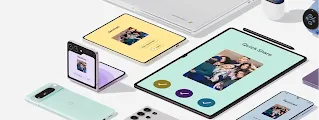
Larger displays provide even more room to work and multitask. On Android foldables and tablets, the multi-app experience gets a major upgrade with the dedicated app bubbles bar. Now, you can manage your floating app windows from the bottom or side of your screen.
To launch apps as bubbles, you can now easily drag those icons directly from your taskbar to the left or right side of your screen. If you want to customize your layout, you can pin the taskbar so it stays visible. You can also hold and drag the app bubbles bar to move it to a more comfortable position.
For the ultimate in productivity, you can try combining split-screen mode with your app bubbles. This setup lets you run two apps side by side while keeping up to five active app bubbles floating on top. Keep an eye on the latest Android 17 updates to find out when this feature rolls out to your device.
App bubbles: a new approach to multitasking.
App bubbles are a unique Android feature that offers a whole new approach to multitasking by keeping important apps accessible without interrupting your main app workflow while gaming, traveling or browsing.
Frequently asked questions.
What are Android 17 app bubbles?
Android 17 app bubbles are floating, resizable windows that hover over your primary active application. Unlike older versions of Android that only supported messaging apps, Android 17 lets you turn almost any app into a floating window. This helps you multitask without leaving your current screen.
How do I use app bubbles on a foldable device?
The app bubbles bar acts as a dedicated dock for your active floating apps on foldables. You can launch bubbles by dragging apps from your taskbar to the side of the screen. You can also drag the app bubbles bar to reposition it or combine it with the split-screen view to run multiple apps at the same time.
How do I close a pop-up app bubble on my screen?
To close an active app bubble, touch and hold the icon. Drag the icon to the bottom of your screen, then release it over the target area.