


Switching from iPhone®1 to Android has never been easier.
Say hello to your new digital home – our latest upgrade has made switching from iPhone® to Android smoother than ever.
Switching from iPhone® to Android is now easier than ever.
Welcome to a world of fresh possibilities. If you’ve been putting off the switch from iOS®1 to Android, you’ll be pleased to hear that doing so is now easier than ever. We worked with Apple® to overhaul the switching process to be even more seamless. No need to worry about losing your precious memories or important files: the transition is safe, secure and easy to do, allowing you to dive straight into the Android ecosystem without unnecessary complications.
We believe that upgrading your technology should feel exciting, not daunting. This new upgraded method means you can safely migrate your photos, contacts, messages and even new data types, including saved passwords, Google accounts, eSIMs and more. This upgraded setup experience is rolling out first on select Pixel and Samsung devices, with plans to expand across the wider Android ecosystem soon. Here’s what makes this update a game-changer:
- An upgraded switch method that moves everything you need and love, from photos, contacts, and messages using a wireless connection, without plugging in a cable or downloading an app
- Unlocks transfer of more datatypes, including passwords, Google Accounts, eSIMS, accessibility settings, calendar attachments, and more.
- A more seamless migration that completes in just a few guided steps
- A personalized setup that brings what you love, so your new phone feels like home immediately, even your homescreen layout
- A safe and secure process with Android’s robust built-in safety protections, keeping your data locked down
How to easily transfer from iPhone® to Android.
Follow this guide to transfer your files from iPhone® to Android. A typical transfer usually doesn't take long, though large amounts of data can make it a longer process.
Step one: Prepare your devices.
Charge both phones and connect your iPhone to Wi-Fi. Next, turn off iMessage in your iPhone® settings. This step ensures your future text messages route correctly to your new phone from day one. Finally, check that your new Android-powered device has enough storage space to import your data.
Step two: Power up and pair.
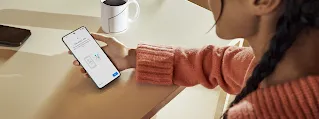
Turn on your new Android device and follow the on-screen instructions. If your device has the upgraded switch method, it will show a QR code to scan with your old phone, followed by simple steps to start the secure data-transfer process. If you don’t get a QR code, you can transfer your data using a cable or the Android Switch app.
Step three: Choose what to bring over.
Now you get to decide exactly what you want to bring with you. You can select specific categories, including apps, contacts, photos, videos, messages, and more. Keep app data selected in order to transfer your Google Account and other important app data from your iPhone.
Now sit back, your protected and secure transfer will have safely begun. While the transfer is happening, you'll get the chance to learn more about your new Android phone. Once the transfer is finished, a completion screen will appear to confirm you are good to move forward and enjoy your new phone.
Making the most of your new Android experience.
Once the initial setup is complete, you can start exploring your new device right away. The remaining data will continue to download quietly in the background without slowing you down.
Staying in touch.
If you use WhatsApp, you'll see a notification soon after your transfer prompting you to copy your chat history. Just tap the notification, follow the instructions, and your history will sync in no time. Your text messages and call history will sync automatically to Google Messages.
Capturing memories.
If you have a large library of photos stored in iCloud®1, you can request a direct transfer to Google Photos. This keeps all your memories searchable and organized in one central place.
Customizing your new home screen.
One of the greatest joys of your new device is making it yours. The upgraded method will transfer your homescreen layout, but you can completely customize your Android home screen further, from placing widgets anywhere you like to choosing dynamic color themes that match your wallpaper. Your phone will truly reflect your personal style.
Frequently asked questions.
How easy is it to switch from iPhone® to Android?
It’s incredibly easy. The iOS-to-Android transfer process has been upgraded so your eSIM, Google Account, passwords, photos, messages, contacts and more can now migrate wirelessly or with a cable from your iPhone® to your new Android device.
Will I lose my WhatsApp chats when switching to Android?
No. You can securely transfer your entire WhatsApp chat history, including your media, from iPhone® to Android. After the initial setup, simply select the WhatsApp prompt and follow the instructions to recover your messages.
If you are using the classic switch method, you will have the opportunity to transfer your WhatsApp chats when you transfer your data during setup. You will need to use a cable to connect your iPhone® to your new Android and follow the on screen instructions. Learn more here.
How do I transfer my iCloud® photos to my new Android phone?
You can transfer any photos stored on your device during the setup. For photos stored in iCloud®, you can request a transfer from Apple® to Google Photos.
Will I have to repurchase my apps? What about my subscriptions?
Most free apps will move over automatically when you transfer your data. For purchased apps on your iPhone®, we recommend contacting the app developer.
Your existing subscriptions will continue to work, but your billing will still be managed the way it is today — either via the app developer or the App Store.
How do I know which Android Switch method my device will have?
The upgraded switch method is available on select devices running Android 17, and will be rolling to more devices soon. For more information on device compatibility, see here.