

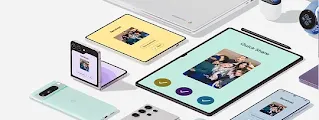


Share files from Android to iPhone. And back again.
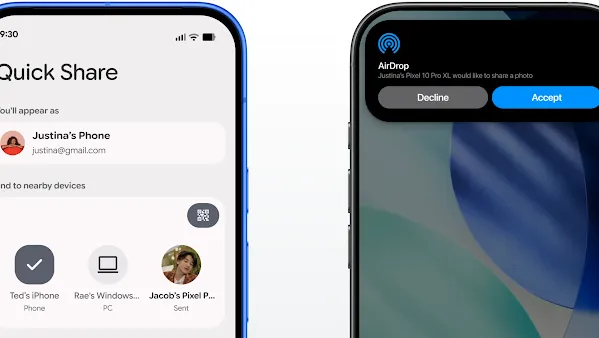
How to share and receive files with iPhone®.
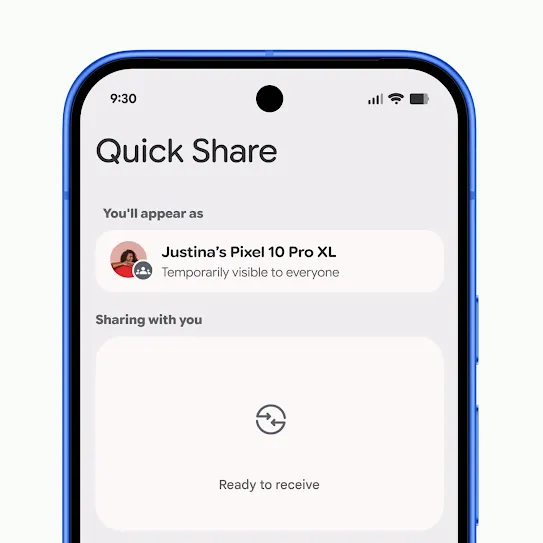
Open Quick Share.
Samsung users need to ensure that Share with Apple devices is on in their Quick Share settings.
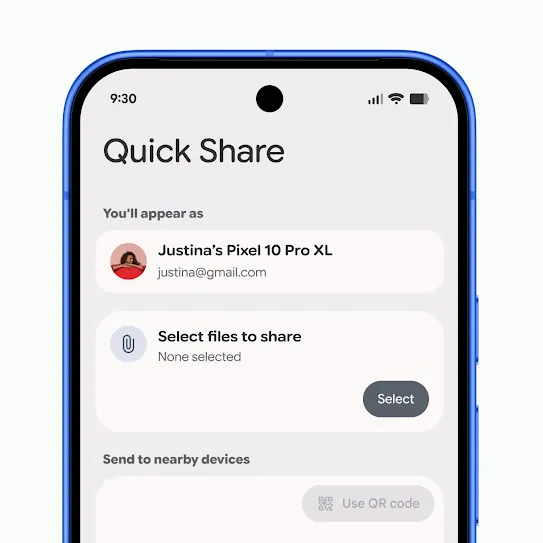
Select photos or files that you want to share.
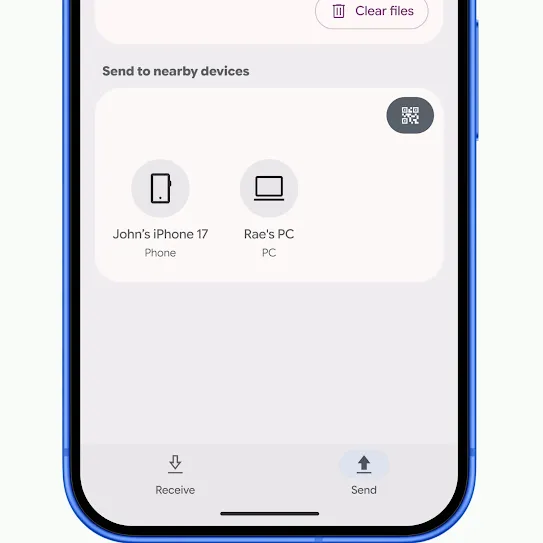
Make sure that the iPhone® user’s AirDrop® visibility is set to Everyone for 10 minutes.
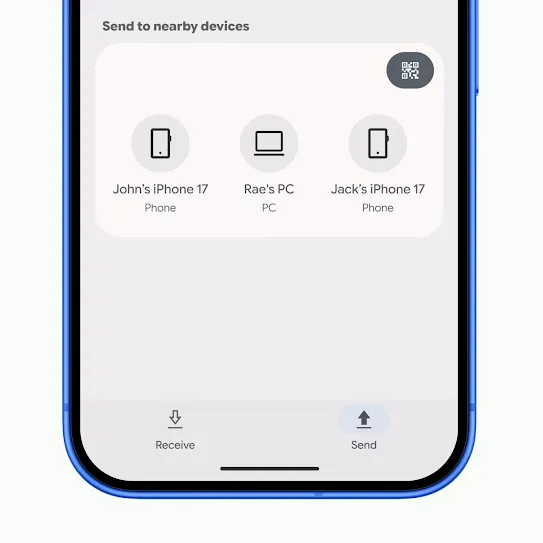
Select the recipient's iPhone®.
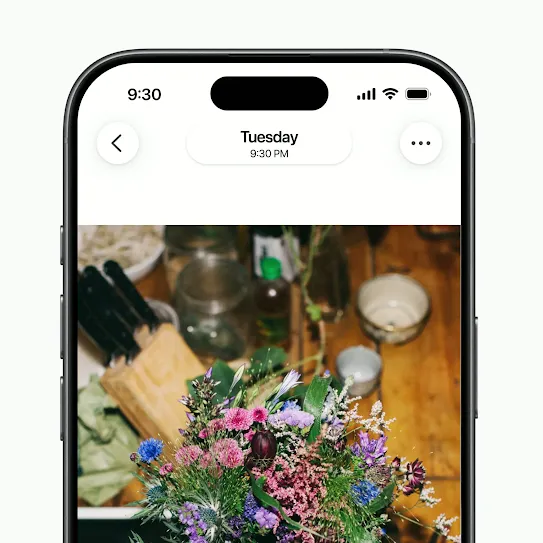
Select photos or files that you want to share.
Tap the Share icon and select AirDrop®.
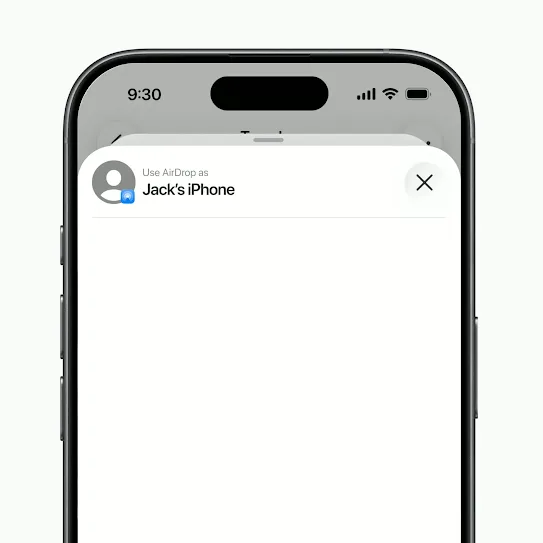
Make sure that the Android user has their Quick Share Receive mode turned on.
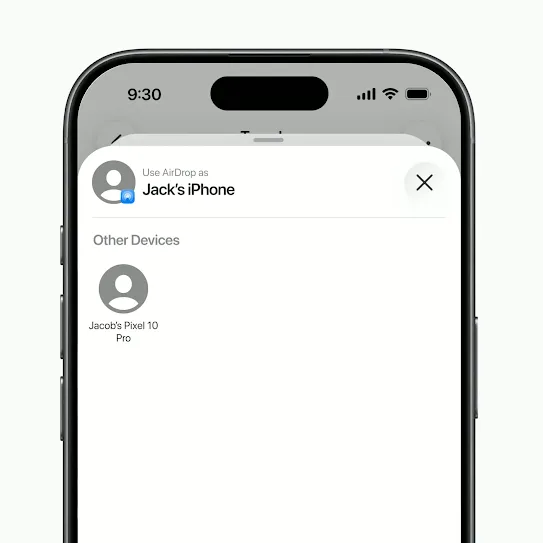
Select the recipient’s Android device.
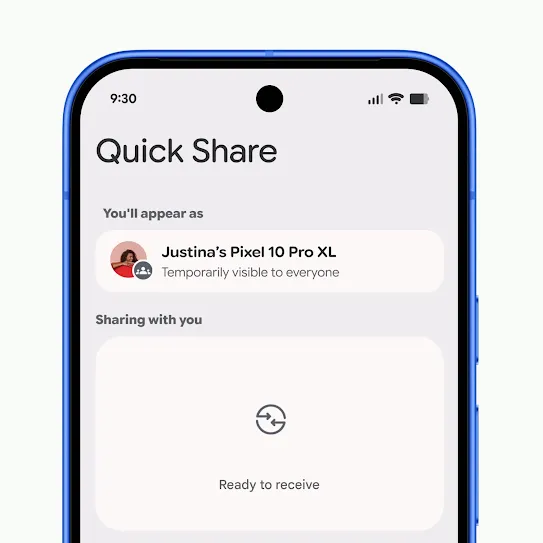
Open Quick Share.
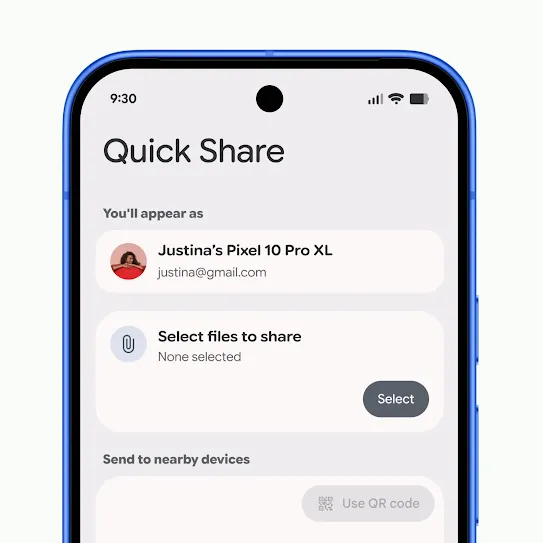
Select the photos or files that you want to share.
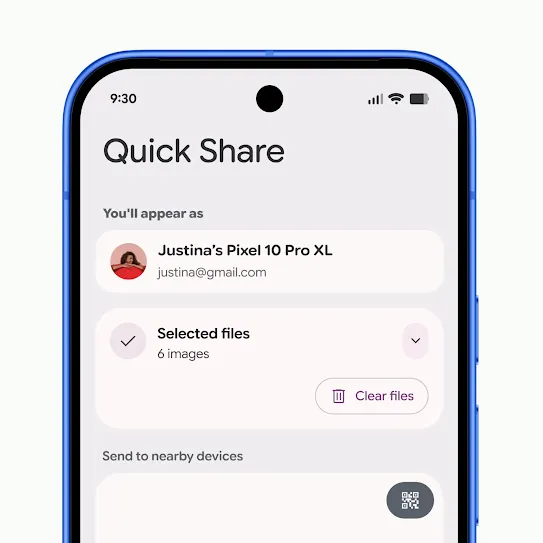
Tap ‘Use QR code’.
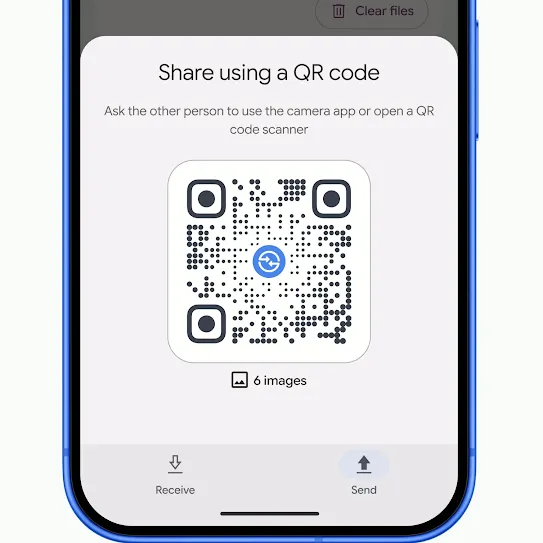
Have the recipient scan the QR code with their camera app.
Once completed, the recipient can download and save the file.
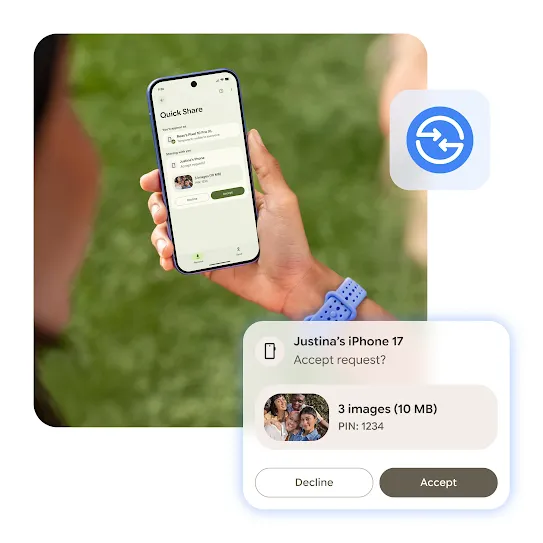
iPhone® friends now included.

FAQ
Yes. With compatible Android devices (see list below), Quick Share now works with Apple’s AirDrop® to share files with iPhones.
Samsung
- Galaxy S26, S26+, S26 Ultra
- Galaxy S25, S25+, S25 Ultra, S25 Edge
- Galaxy S24, S24+, S24 Ultra
- Galaxy Z Flip7
- Galaxy Z Fold7
- Galaxy Z Flip6
- Galaxy Z Fold6
- Galaxy Z Fold6 (Special Edition)
- Galaxy Z TriFold
Google
- Pixel 10, 10 Pro, 10 Pro XL, 10 Pro Fold, 10a
- Pixel 9, 9 Pro, 9 Pro XL, 9 Pro Fold, 9a
- Pixel 8a
Xiaomi
- Xiaomi 17T Pro
OnePlus
- OnePlus 15
OPPO
- OPPO Find X9, X9 Pro, X9 Ultra, X9s
- OPPO Find N6
HONOR
- HONOR Magic V6
vivo
- X300 Ultra
Coming soon:
- Motorola razr fold 2026
- OPPO Find X8 series
- HONOR Magic8 Pro
- vivo X300, X300 Pro
First, the iPhone user must be within Bluetooth range. Additionally, they need to change their AirDrop® visibility to Everyone for 10 minutes. Next, open the file that you want to share with the iPhone user on a supported Android device. Then, tap Share, select Quick Share and choose the nearby iPhone. The iPhone user then accepts the AirDrop® prompt to receive the file.
AirDrop® is Apple’s file-sharing feature for Apple devices. With the latest update on compatible Android devices, Quick Share can work with AirDrop® to enable file sharing between supported Android and all iPhone devices.