





In this article
Why is Android phone security important?
Understanding Android’s commitment to phone security.
Simple ways to secure your Android phone.
How you can secure your phone and Google account.
Managing network security on your phone.
Advanced Android security measures.
Your Android phone comes with equipped security tools to help safeguard your personal data and give you assurance. In this guide, we’ll explore the essential features that protect your privacy and prevent anyone from unauthorized access to your Android device.
Why is Android phone security important?
Your mobile holds a lot of data, from banking apps to photos to contacts. That’s why protecting your device isn’t just important, but crucial for keeping your important data secured.
Here’s why Android phone security matters:
- Protecting your personal information: Your device contains sensitive data like emails, messages and saved passwords. Without safeguarding it, unauthorized person could access it.
- Financial security: With banking and shopping apps on your phone, it’s necessary to prevent unauthorized access that could lead to financial fraud or theft.
- Malware: Your Android phone could be targeted by malware that damages your device or steals your information.

Understanding Android’s commitment to phone security.
Android is built with very powerful security features designed to keep your phone (and your data) secured. From protecting you against scams, fraud and theft to safeguarding against malicious apps, you’re protected from the moment you power on your device.
Simple ways to secure your Android phone.
Setting up lock screen, whether with a password, PIN or biometrics*, is one of the simplest ways to protect your device from unauthorized access.
These built-in security features on Android are very simple to set up and offer a strong first layer of mobile phone security. Let’s explore how you can use them to protect your phone.
1. Protect your phone with a strong password.
Choose a password that you’ll remember (so you don’t get locked), but that's difficult for someone else to guess.
Top tip: When choosing a password, use a mixture of uppercase and lowercase letters, numbers, and symbols.
Alternatively, choose a PIN. Enter 4 or more numbers, but a 6 digit PIN is recommended for added security as longer PINs tend to be more secure. We’d recommend either of these options over a pattern lock, as there are so many patterns to choose from, which makes them easier to guess.
2. Secure your Android phone with a biometric lock.
Did you know you can unlock your phone with just your fingerprint or face? Android-powered devices offer several biometric lock options*, which means you can use your biological characteristics to secure your phone.
Fingerprint scanning is a quick and secure way to lock and unlock your device, as you have to touch your phone for it to work. Facial recognition is another option, which analyses specific points of the face to verify who you are and unlocks your phone. While this is also quick and convenient, it’s slightly less secure than using your fingerprint, as you can be away from your device to unlock it using facial recognition.
*Biometric feature availability may vary device to device.
How you can secure your phone and Google account.
Your Google Account is a gateway to many services, so learning how to secure it to protect your phone is essential. Let’s break down a few steps you can follow to keep your data protected:
- Passkeys: Enjoy easy access using your device’s screen lock, like a fingerprint or PIN. Passkeys are resistant to phishing, twice as fast as passwords and work seamlessly across all your devices. Built on industry standards, they deliver next-generation security without the hassle of remembering your login details or passwords.
- Sign in with Google: Using Sign in with Google, your credentials stay protected with Google, even if a third-party app or service has a security breach. Your login details are uniquely verified, keeping your sign-in details private and secure. You can easily manage and update what data you want to be shared, all in one place, keeping you in control of your accounts and connections.
- 2-Step Verification: To prevent any unauthorized access to your account, use a secondary authentication process in addition to your usual login procedure. 2-Step Verification provides even stronger protection and security against hackers.
- Password Manager: Google’s Password Manager helps protect your personal information by securely suggesting passwords, saving and creating strong, unique passwords for all your accounts. Passkeys are supported, too, and everything is efficiently managed in one place.
Mobile app security.
When it comes to learning Android phone security, discovering new ways to manage your apps properly is crucial. Here are a few ways to stay maintain top notch security:
- Keep your software updated: Install system and app updates on time to equip your phone from security updates and patches that fixes bugs and security breaches.
- Install apps from trusted sources: Only download apps from trusted sources like the Google Play Store, as apps from unknown sources may contain malware.
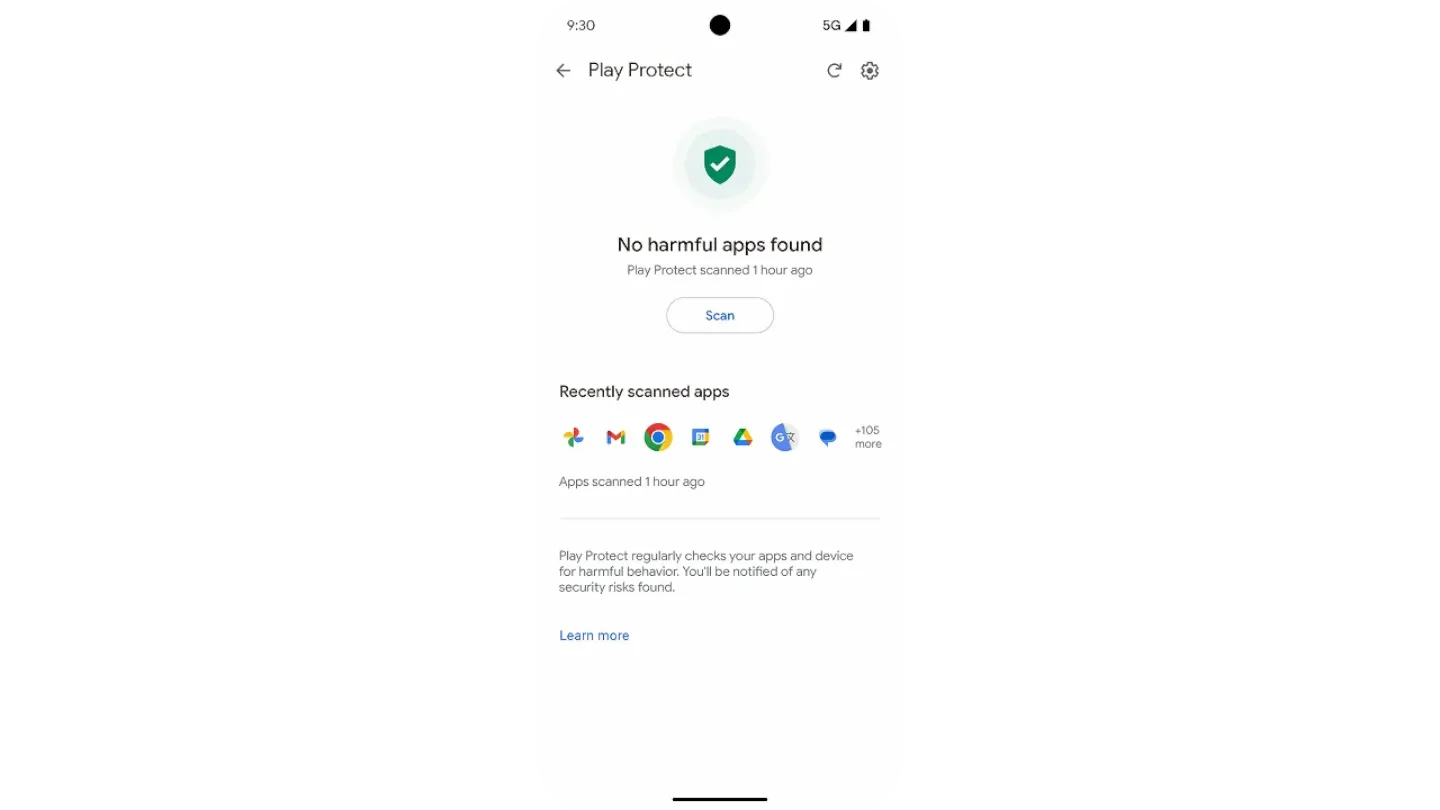
- Google Play Protect: This built-in tool scans any malicious activity of apps regularly and warns you or removes malicious apps.
- Review and manage app permissions: Make sure you frequently check and cancel unnecessary permissions given to apps in your device’s settings. Top tip: Only allow the minimum permissions required for each app to function properly.
- Use secure messaging apps: If possible, use end-to-end encrypted messaging apps for secure communication.
- Hide notifications: You don’t want anyone seeing notifications with personal information. close them from showing on the lock screen by changing your notification settings.
- Review old apps: Android automatically disables permissions for apps you haven't used for a while, but you can review old apps and turn off permissions on your own.
- Remove unused apps: Keeping unused apps installed can pose a security threat, so it’s a good idea to remove them (plus, you’ll free up some phone storage, too).
What about mobile security apps?
There are plenty of third-party apps out there, but Android already has a built in powerful security system. Tools like Google Play Protect and lock-screen protection work together to keep your device secure, so you and your data stay protected without the need of any third party app.
Link to Youtube Video (visible only when JS is disabled)
Managing network security on your phone.
Android phone security offered on the go by securing your network connections.
Here are our top tips:
- Avoid using public Wi-Fi: Be careful when using public Wi-Fi networks, as they are often unsecured and can leave your phone vulnerable to attacks.
- Disable automatic and unnecessary connections: Head to your settings and turn off automatic connections to unsecured networks and forget the network connections you don’t frequently use.
- Use strong Wi-Fi passwords: To reduce the risk of unwanted access, choose a unique and difficult password to guess.
Advanced Android security measures.
There are plenty of features on your Android phone that aim to enhance mobile phone security. Discover how to protect your phone using advanced safety features.
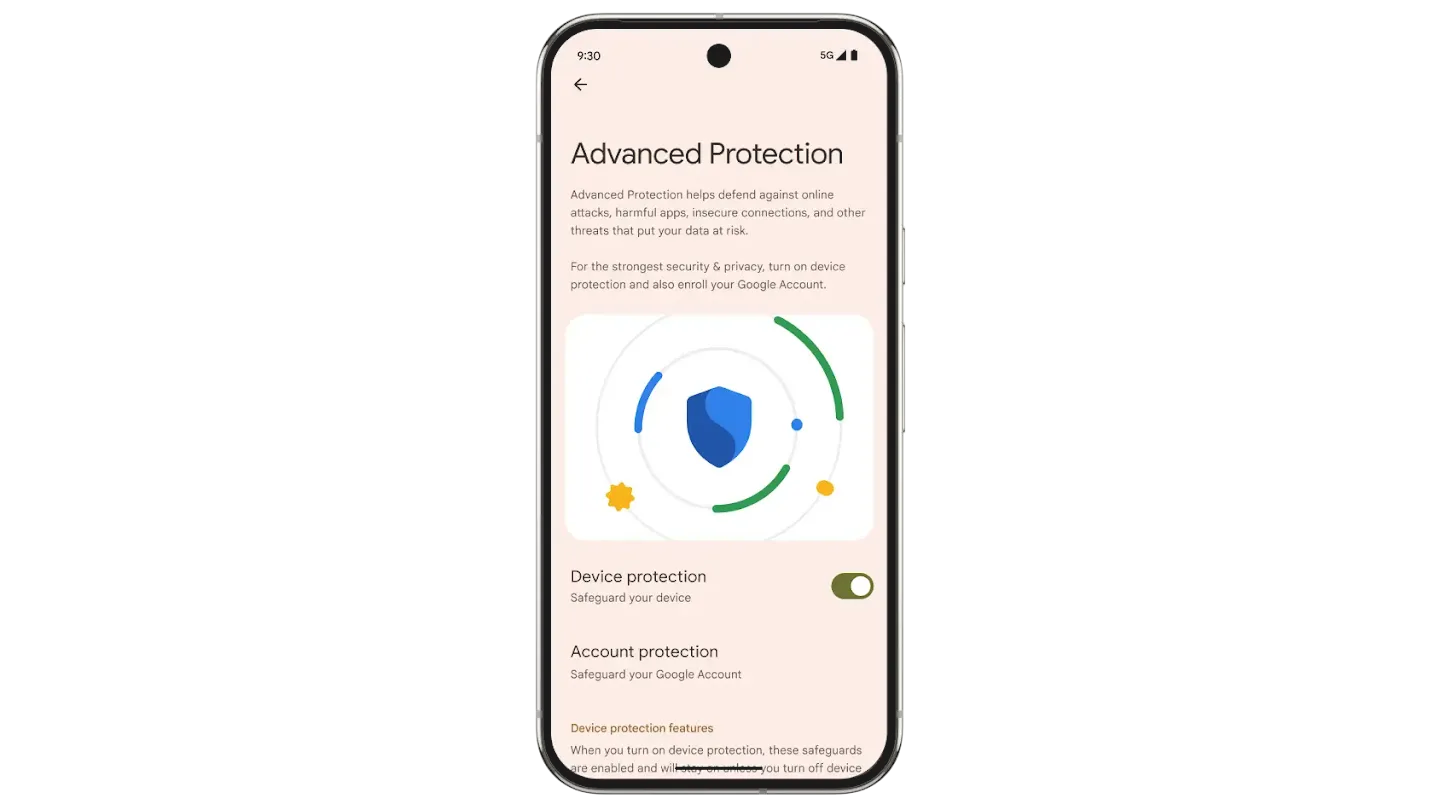
- Turn on Advanced Protection: Android 16 offers our highest level of protection against online attacks, malicious apps, unsafe websites, scam calls and more. You can turn on advanced security features using Advanced Protection with one click. These automatic protections help guard your data against hacks and ensure that your security features are enabled and seamlessly work together.
- Enrol in the Advanced Protection Program for additional account security: For users who are at high risk of cyber attacks, like journalists, elected officials, political campaign staff and human rights workers, can enrol in the Google Advanced Protection Program, which prevents unauthorized access to your Google account and keeps your personal information secured.
Protect yourself against scams, fraud and theft.
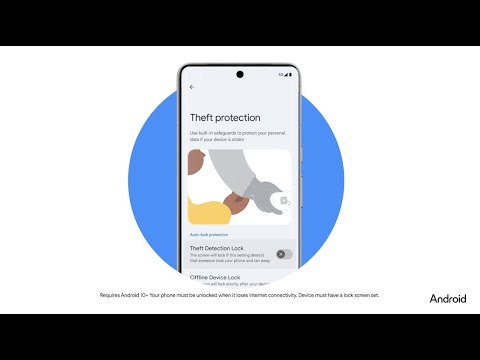
To help in your protection you against theft or fraud, you can turn on built-in theft protection features*, such as Theft Detection Lock. This feature detects if your device was stolen and locks the screen.
Offline Device Lock is another feature that protects your data. It activates if your device goes offline and locks the screen. For example, if someone steals your phone and turns off the internet to stop you from finding it with Find Hub, your device will lock after a short period of time.
You can also enable other built-in features to protect yourself against scams and fraud. Keep spam protection turned on in Google Messages to filter out suspicious texts. Plus, make sure Safe Browsing is enabled in Chrome or upgrade to Enhanced Safe Browsing for extra protection.
*Some theft protection features require Android 10+.
Link to Youtube Video (visible only when JS is disabled)
Backup and recovery.
If you’re wondering how else you can secure your phone, it’s also important considering your recovery options.
- Backup your data: Regularly backing up your data using the cloud, local storage, or Google Drive ensures mobile phone security in an unfortunate incident.
- Find Hub: If your phone is lost or stolen, this handy feature helps you locate, lock or wipe data from your device for security for Android phone. Learn more about Find Hub.
Extra tips for protecting your phone.
- Be cautious with links and attachments: Phishing attacks are usually targeted through emails or messages with links and attachments, so be cautious.
- Use a secure browser: It’s a good idea to use a browser with built-in anti-phishing and anti-malware features.
- Privacy filters: Use privacy filters on your screen to prevent others from viewing any sensitive or personal information.
Your Android phone is made with top notch security in mind. Use the built-in features and try out our top tips for Android phone security.